Add a provider
A provider is a service your users can connect, either through OAuth 2 or by pasting an API key. This guide covers adding one from the built-in list, adding one that is not listed, and the cases that need extra settings.
From the built-in list
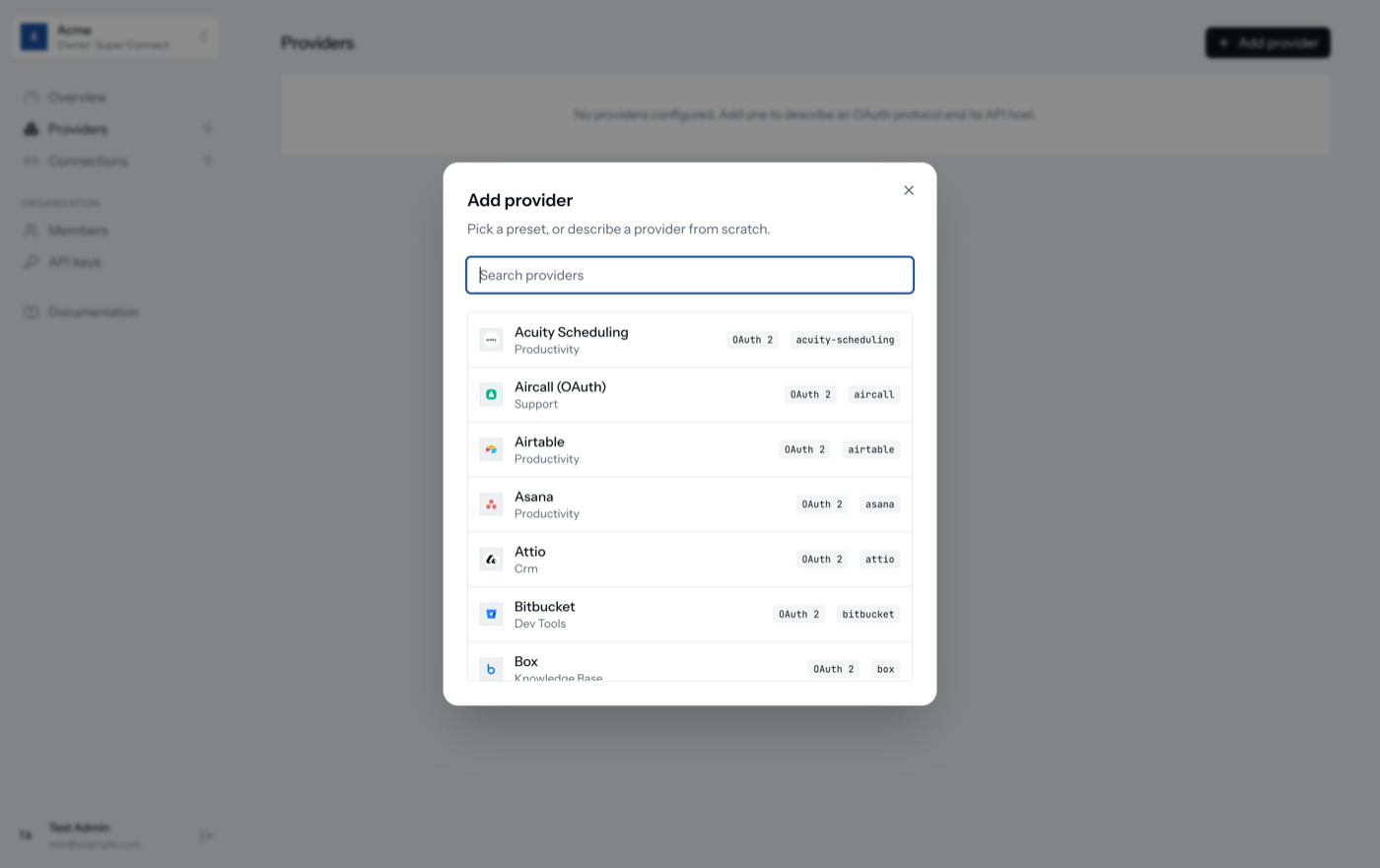
- Providers → Add provider, search, pick the service.
- Fill Client ID, Client secret and Scopes from your OAuth app.
- Add provider.
The callback URL to register with the OAuth app is shown under Delivery & callback in the same dialog and is always:
https://super-connect.dogar.biz/oauth/callbackProviders marked with an action template also expose typed actions after you save them.
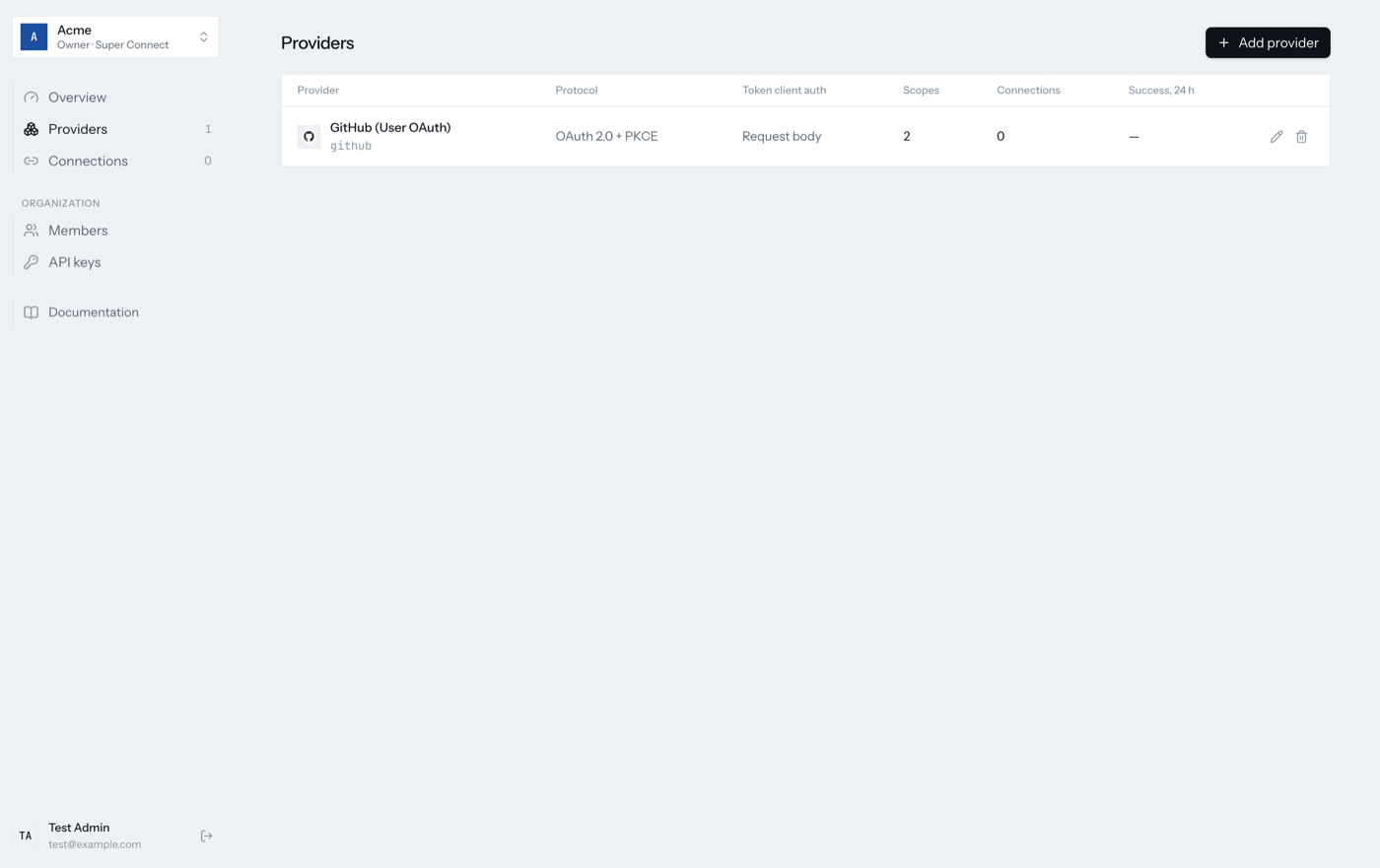
A provider that is not listed
Choose Add provider, then start from an empty form. You need four things from the service's OAuth documentation:
| Field | What to enter |
|---|---|
| Authorization URL | Where the user is sent to consent, for example https://…/oauth/authorize |
| Token URL | Where the code is exchanged, for example https://…/oauth/token |
| API base URL | The API host every request must stay under, ending in / |
| PKCE | On if the service supports S256 PKCE. Leave on unless it breaks |
All three URLs must be HTTPS with no query string. Put authorization query
options such as access_type=offline into Authorization parameters, one
key=value per line.
OAuth 2 authorization code with bearer tokens and API keys are supported. OAuth 1, GitHub App installation tokens and custom token formats are not.
Services that use an API key
Pick the service from the list, or set Authentication to "API key pasted by the user" on a custom provider and fill in:
| Field | What to enter |
|---|---|
| API base URL | The API host every request must stay under, ending in / |
| Header name | The header the key travels in, for example authorization |
| Header format | Its value with ${apiKey} in place of the key, for example Bearer ${apiKey} |
| Field title | What the connect sheet calls the key |
| Field description | Where the user finds it |
| Expected pattern | Optional regular expression; keys that do not match are refused |
No client ID, secret or scopes are needed. Your users paste their own key in
the connect sheet, or your backend sends it through
POST /api/v1/connect/:integrationId. The key is encrypted like an access
token, never refreshed, and can be replaced in place through the same route or
a reconnect link.
Slack user tokens
Slack puts user tokens under authed_user and expects the scope parameter to
be user_scope. The built-in Slack entry sets both. If you build Slack by
hand, set Scope parameter to user_scope, Token response path to
authed_user, and leave Refresh response path empty.
Services that send credentials as Basic auth
Some token endpoints refuse credentials in the body. Set Token client
authentication to basic.
Several OAuth clients for one service
You cannot yet attach two OAuth clients to one provider from the admin panel.
Use the API instead: keep one provider and save a second integration with a
different ID and credentials through PUT /api/v1/integrations/:id. See
HTTP API → Integrations.
Editing and deleting
Editing a provider changes the settings used by every connection under it. Endpoint changes take effect on the next token refresh, so double-check them.
Deleting is refused while connections exist. Disconnect them first from Connections. Disconnecting removes the stored tokens only; revoke the grant in the provider's own settings if you need it gone there too.